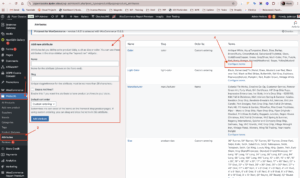
Create a unique name for it, don’t use a name that already exists.
Create the SLUG. (will be used on the url to this attribute)
Edit the terms inside the attributes/taxonomy.
Add new terms to the attribute/taxonomy.
& 3. Can select more than one and delete, or delete a single one by hovering the mouse over it and clicking the “delete” link that appears under the name
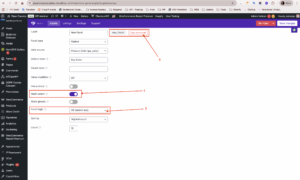
Creating Filter
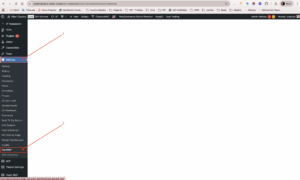
Go to Settings
Go to FacetWP
Click to add new
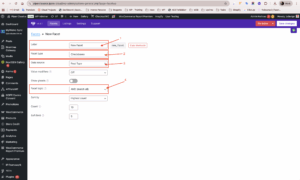
Choose the Label of the facet.
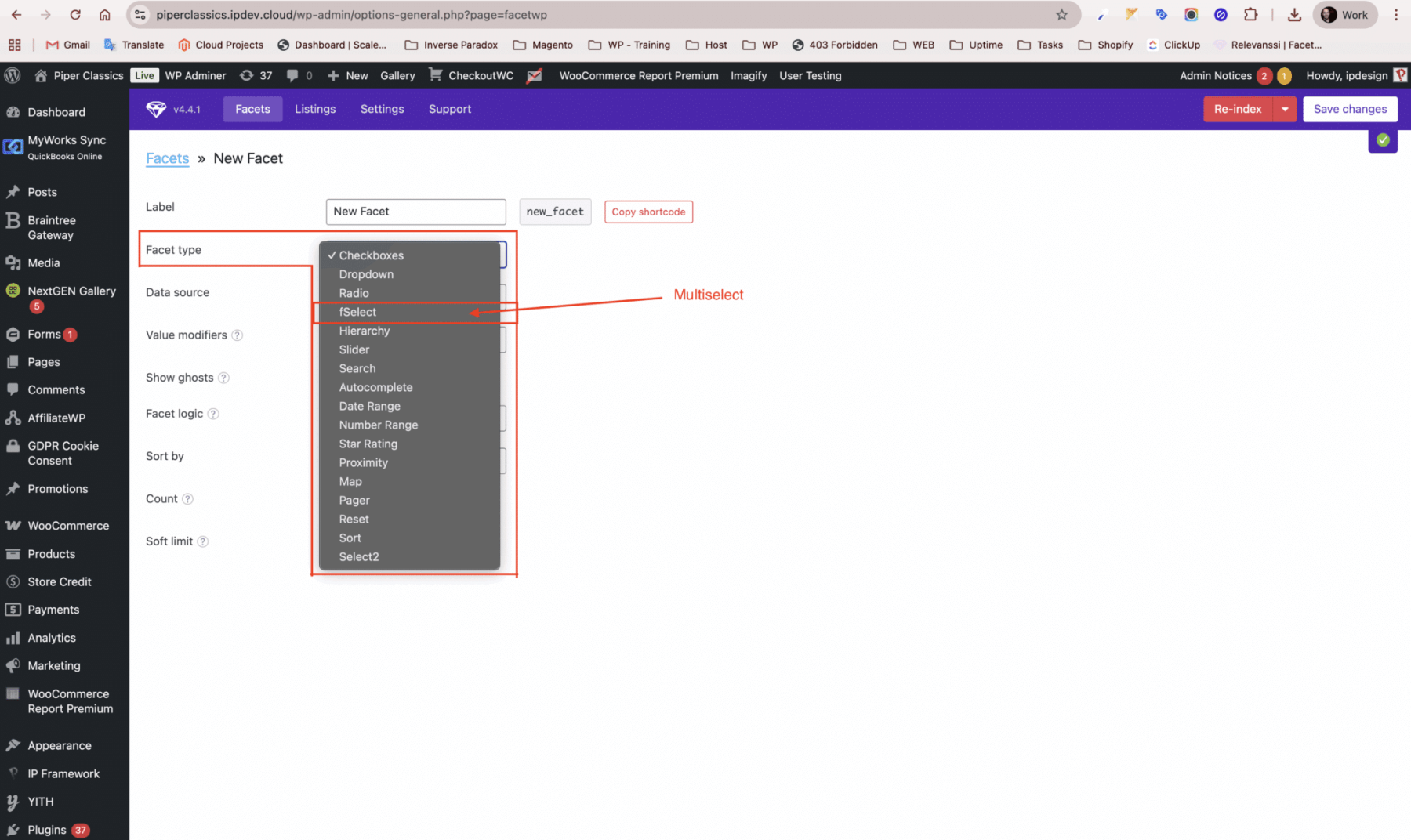
Choose the type of the facet. (For multiple select, this should be fSelect)
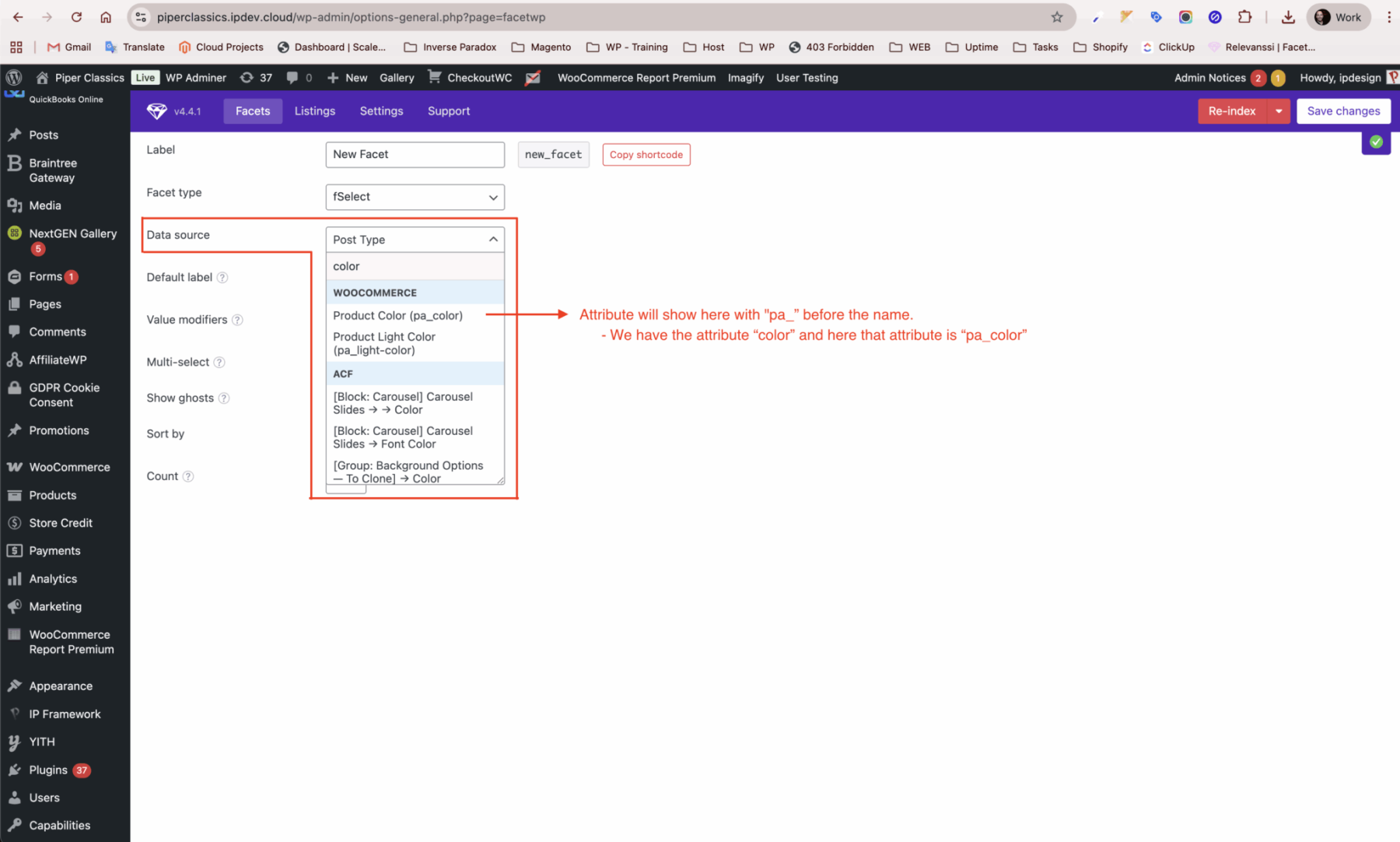
Data Source will be the product attribute you’ve created.
WP/WOO put the characters “pa_” in front of the name.
For example:
– Attribute “color” will be “pa_color”.
– If you created a new attribute called “newtest”, this will be “pa_newtest”.
Facet Logic should be selected based on how you want the results to be matched.
For example:
– Taxonomy “pa_color” multiple selected “Blue” and “White”
– AND will try to find products with both of those two colors. (if the product only has one color, it will not match the filter)
– OR will match if a product has only one of those two color. (will list Blue products and White products)
Multiselect to let the customer choose more than one option.
Facet logic (AND or OR)
Click to copy the “shortcode” will need that to enable on frontend on next steps.
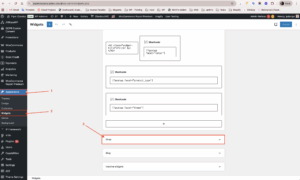
Add filter on frontend
Go to Appearance
Go to Widgets
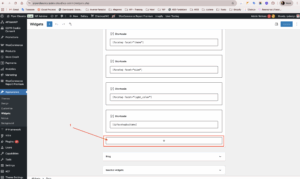
Click on “Shop”
Scroll the page after clicking on “shop” to see the “+” at the bottom and click on that.
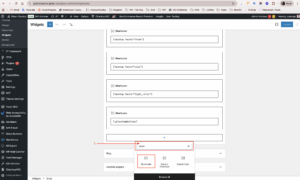
Type “short” and will appear the “Shortcode” option, click on that.
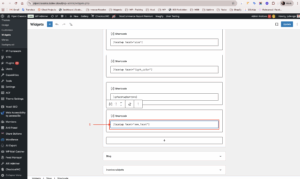
Paste the shortcode from the facet.
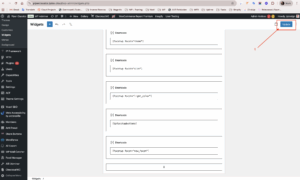
Click to Update. (will save the widget)
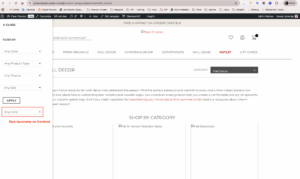
Facet should be listening on frontend filters.
** If you want to change the order of the filters, you can drag and drop the shortcode widgets in the desired order and click to update on admin page.
We use cookies on our website to give you the most relevant experience by remembering your preferences and repeat visits. By clicking “Accept All”, you consent to the use of ALL the cookies. Accept AllRead More
Manage consent
Privacy Overview
This website uses cookies to improve your experience while you navigate through the website. Out of these, the cookies that are categorized as necessary are stored on your browser as they are essential for the working of basic functionalities of the website. We also use third-party cookies that help us analyze and understand how you use this website. These cookies will be stored in your browser only with your consent. You also have the option to opt-out of these cookies. But opting out of some of these cookies may affect your browsing experience.
Necessary cookies are absolutely essential for the website to function properly. These cookies ensure basic functionalities and security features of the website, anonymously.
Cookie
Duration
Description
cookielawinfo-checkbox-analytics
11 months
This cookie is set by GDPR Cookie Consent plugin. The cookie is used to store the user consent for the cookies in the category "Analytics".
cookielawinfo-checkbox-functional
11 months
The cookie is set by GDPR cookie consent to record the user consent for the cookies in the category "Functional".
cookielawinfo-checkbox-necessary
11 months
This cookie is set by GDPR Cookie Consent plugin. The cookies is used to store the user consent for the cookies in the category "Necessary".
cookielawinfo-checkbox-others
11 months
This cookie is set by GDPR Cookie Consent plugin. The cookie is used to store the user consent for the cookies in the category "Other.
cookielawinfo-checkbox-performance
11 months
This cookie is set by GDPR Cookie Consent plugin. The cookie is used to store the user consent for the cookies in the category "Performance".
viewed_cookie_policy
11 months
The cookie is set by the GDPR Cookie Consent plugin and is used to store whether or not user has consented to the use of cookies. It does not store any personal data.
viewed_cookie_policy
11 months
The cookie is set by the GDPR Cookie Consent plugin and is used to store whether or not user has consented to the use of cookies. It does not store any personal data.
Functional cookies help to perform certain functionalities like sharing the content of the website on social media platforms, collect feedbacks, and other third-party features.
Performance cookies are used to understand and analyze the key performance indexes of the website which helps in delivering a better user experience for the visitors.
Analytical cookies are used to understand how visitors interact with the website. These cookies help provide information on metrics the number of visitors, bounce rate, traffic source, etc.
Advertisement cookies are used to provide visitors with relevant ads and marketing campaigns. These cookies track visitors across websites and collect information to provide customized ads.

 Add/Remove Taxonomy and Terms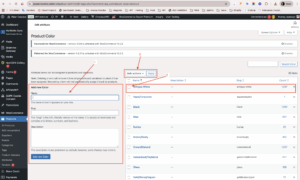
 Creating Filter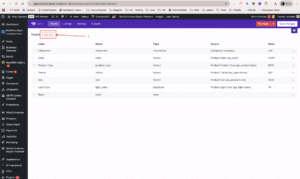
 Add filter on frontend